
Capability-Aware Cloud Slicer for 3D Print Farms
What Is a Capability-Aware Cloud Slicer?
Capability-aware cloud slicing for 3D print farms. Printago slices models on demand in the cloud with Bambu Studio and Orca Slicer, resolving printer, material, and profile context at job time. Upload parts once and stop maintaining separate G-code libraries.
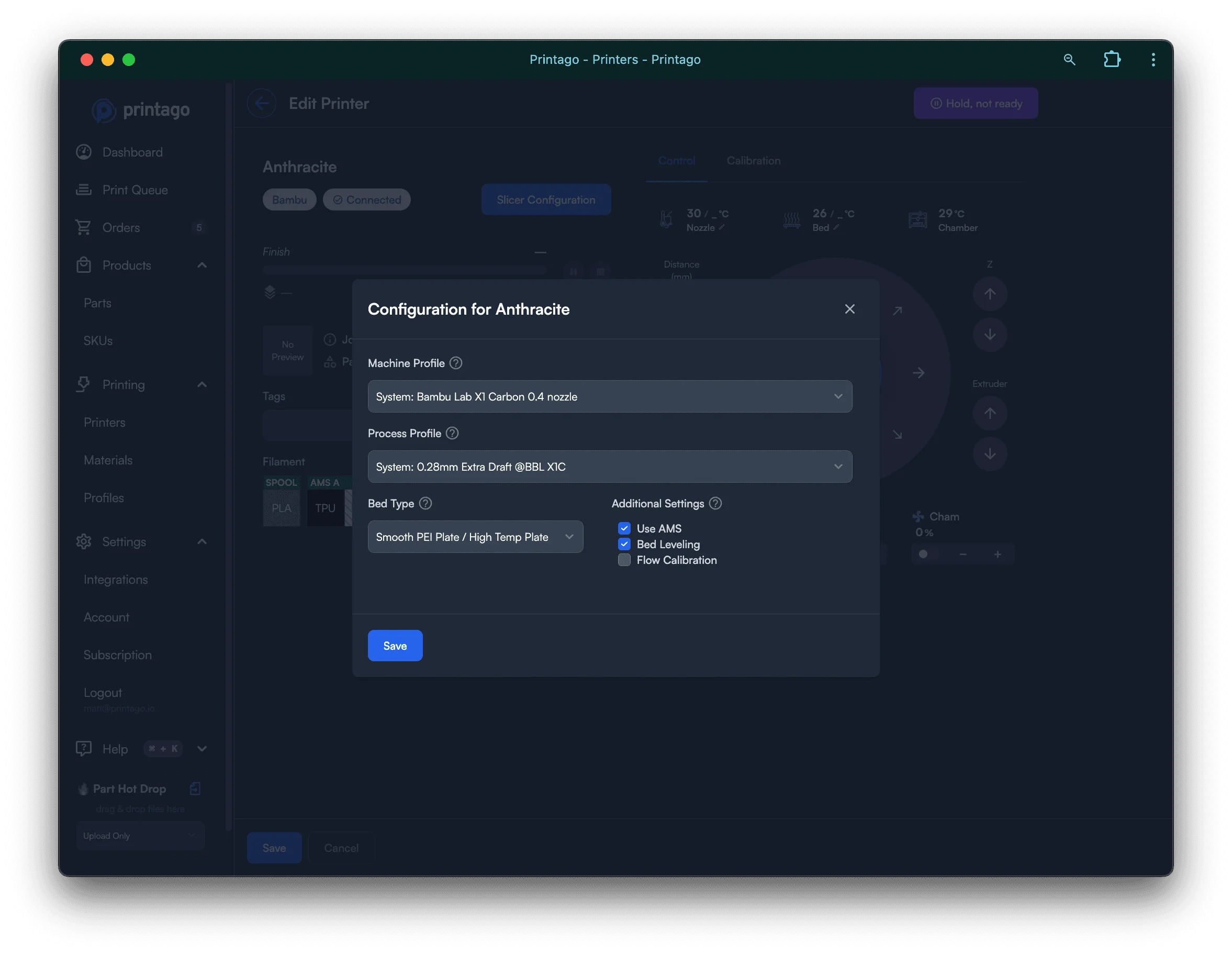
A capability-aware cloud slicer turns 3D models into printer-ready G-code on a server instead of on a desktop computer, resolving each job's printer capabilities, materials, and profiles at slice time. In Printago, slicing happens automatically when a job is assigned to a printer. The slicer receives the part, machine profile, process profile, material profile, and plate selection, then produces G-code for that exact printer and job.
That means your source of truth can be the model, not a folder full of pre-sliced files. Upload a part once, connect it to the right profiles, and Printago generates the correct output when the queue knows which machine will run it.
Why Print Farms Outgrow Desktop Slicing
Desktop slicing works when one person prepares files for a small number of machines. It breaks down when the same product needs to run across different printer models, nozzle sizes, materials, colors, and order variants. Every new combination creates another file to name, store, check, and update.
Printago's cloud slicer moves that work into the production system. Instead of asking an operator to decide which G-code file is right, Printago waits until the queue assigns the job, resolves the current printer and material context, and slices the part for the machine that is actually available.
| Workflow | Desktop slicing | Printago cloud slicing |
|---|---|---|
| Source of truth | Pre-sliced G-code files | Model, 3MF project, or parametric source |
| Printer choice | Usually chosen before slicing | Chosen by the queue at assignment time |
| Profile updates | Re-slice and replace stored files | Update the profile and future jobs re-slice |
| Material/color changes | Maintain more file variants | Resolve material variant at job time |
| Repeat jobs | Reuse a saved file manually | Serve from cache when inputs match |
| E-commerce orders | Manual export and upload steps | Orders can flow straight to queued prints |
On-Demand G-code Generation
The cloud slicer triggers automatically when Gutenbed assigns a job to a printer. No one has to pre-slice for every printer and material combination. Fresh G-code is generated for the assigned printer's current configuration, then attached to the print job.
If the same part, printer, material, process profile, plate, and slicer version are used again, Printago can serve the cached result instead of slicing again. If any of those inputs change, the cache is invalidated and the job is sliced fresh.
The Printago Slicing Workflow
- Upload a model, 3MF project, parametric source, or pre-sliced file.
- Assign profiles, materials, variants, and any part-specific overrides.
- An order, manual action, API request, or bulk operation creates a print job.
- The smart queue matches the job to a compatible printer.
- Printago resolves the printer, process, material, color, AMS, and plate context.
- Bambu Studio or Orca Slicer runs headlessly in the cloud.
- The resulting G-code is cached, attached to the job, and delivered to the printer.
Profile Resolution System
Printago combines multiple profile sources to generate the right G-code for the assigned printer.
- Machine profiles define printer capabilities, bed size, nozzle configuration, and AMS or material-loading context.
- Process profiles define print quality and behavior, with part-specific overrides taking priority over printer defaults.
- Material profiles define filament-specific settings, with material variant overrides for color or vendor-specific behavior.
- Part settings can pin a preferred slicer engine, process profile, plate, or override when a product needs special handling.
Universal Part Compatibility
Upload once, print across compatible machines in your fleet. Your X1C, P1S, and A1 Mini can all use the same part file, while Printago handles bed size, nozzle, AMS, material, and printer capability differences at slice time.
For print farms, this matters because a part file becomes reusable operational inventory. When a profile changes, you update the profile instead of hunting down every G-code export that depended on it.
Slicer Engine Support
Printago currently runs two cloud slicer engines:
| Engine | Best fit | Notes |
|---|---|---|
| Bambu Studio | Bambu Lab fleets, AMS-heavy workflows, official Bambu profile parity | Runs the upstream Bambu Studio engine in the cloud. |
| Orca Slicer | Farms that prefer Orca settings, calibration tools, and community profile behavior | Runs the upstream Orca Slicer engine in the cloud. |
You can set a default engine in account settings and override it per part when needed. Profiles can sync from your Bambu account when you enable cloud sync in your slicer, and you can refresh them through the Bambu integration flow.
Printago does not currently run PrusaSlicer as a cloud engine. Prusa printer support and PrusaSlicer support are separate topics: Printago can manage printers through supported printer integrations, but cloud slicing today is based on Bambu Studio and Orca Slicer.
File Formats and Inputs
Printago accepts production files and source files, not just exported G-code.
| Input | How Printago uses it |
|---|---|
| STL | Sliced on demand with the selected engine and profiles. |
| STEP | Converted through the part pipeline, then sliced for the assigned printer. |
| 3MF project | Preserves slicer work such as plates, supports, modifiers, and painted settings where supported by the chosen engine. |
| OpenSCAD, ColorSCAD, CadQuery, build123d | Rendered from source with parameters, then sliced automatically. |
.gcode.3mf |
Passed through as pre-sliced output when you need exact control over the generated artifact. |
Process Profile Override
Set custom process profiles on any part for consistent results. Profiles pulled from your synced user profiles can be reused across compatible machines. Create profiles like "0.16mm with ironing" or "fast draft PETG" and attach them to the parts that need them. Update a profile once and future jobs using it inherit the change.
Material Profile Configuration
Materials require slicing profiles for the printer model and nozzle combinations you intend to use. Base materials define the fundamental settings for a filament type, while material variants can override color-specific or vendor-specific behavior.
This lets the queue make better assignment decisions. If a job needs black PETG and only certain printers have a matching profile and loaded material, Printago can route the job to the right machines and slice with the right filament settings.
G-code Delivery
After slicing, G-code is packaged as a 3MF file containing printer-specific instructions, print thumbnails, and metadata. Operators can download G-code from completed jobs for troubleshooting, comparison, or archival workflows. The queue remains the source of truth for what was sliced, which profiles were used, and which printer received the job.
3MF Project Preservation
Complete 3MF projects preserve slicer work that would be painful to rebuild by hand. Supports, modifiers, seam painting, negative parts, and multi-plate layouts can stay with the project and travel through the queue. Multi-plate projects slice plate by plate, so the same uploaded project can become multiple production jobs without manual export steps.
API and E-Commerce Automation
Cloud slicing is most valuable when it is part of a larger automation loop. Printago can create jobs from Shopify, Etsy, manual bulk actions, or the Printago API. The slicer then runs as a background production service instead of a separate desktop task.
That is what lets personalized products scale. A SKU variant, order option, or API payload can render a parametric model, choose material and color, assign a printer, slice, and queue the print without an operator opening a slicer.
Security and File Handling
Slicing happens inside Printago's production pipeline so jobs can be tracked, audited, and reproduced. Source files, generated outputs, and job metadata stay connected to the part and print job they came from. If a team needs exact artifact control, pre-sliced .gcode.3mf uploads are still supported.
Related Reading
- Bambu Studio in the cloud
- Orca Slicer in the cloud
- Orca and Bambu Studio comparison
- 3D print farm slicing strategy
- Bambu Studio CLI reference
- Orca Slicer CLI reference
- How the 3MF file format works
Frequently Asked Questions
Which slicer engines does Printago support?
Printago supports Bambu Studio and Orca Slicer as cloud slicing engines. You can set a default in account settings and override it per part when needed. Printago does not currently run PrusaSlicer as a cloud engine.
Do I need to install a slicer on my computer?
No. Printago slices in the cloud. You upload model files, projects, or parametric sources, then Printago handles profile resolution, slicing, caching, and G-code delivery.
Can I use my existing Bambu Studio or OrcaSlicer profiles?
Yes. Profiles can sync from your Bambu account when you enable cloud sync in your slicer. Run the Bambu integration flow in Printago to pull in your latest profiles, including custom process profiles you have already tuned.
What file formats can I upload?
Printago accepts STL, STEP, 3MF, OpenSCAD, ColorSCAD, CadQuery, build123d, and pre-sliced .gcode.3mf files. Full 3MF projects preserve in-slicer work including supports, modifiers, seam painting, and multi-plate layouts where supported by the selected engine.
Does cloud slicing work with Klipper and Prusa printers?
Printago's cloud slicing is strongest today for Bambu Lab workflows using Bambu Studio and Orca Slicer. Printer connectivity and slicer engine support are separate: Printago can support different printer integrations without running every vendor's slicer. If you need cloud slicing for a specific Klipper or Prusa workflow, contact us so we can confirm the current profile and engine path.
Can I still upload pre-sliced G-code?
Yes. If your team wants exact control over generated output, upload a pre-sliced .gcode.3mf file. Printago can still queue, track, and deliver that file without re-slicing it.
When does Printago re-slice instead of using the cache?
Printago re-slices when meaningful inputs change: the part, selected plate, printer profile, process profile, material profile, color variant, slicer engine, or slicer version. If the inputs match a previous job, Printago can serve cached output instead.
Sign up for free today
No credit card required. Connect unlimited printers and get production automation running in minutes.